If your Sony WF-1000XM4 earbuds suddenly stop working, it can be very frustrating. Imagine starting your day and finding one or both earbuds silent. As experienced audio technicians, we’ve seen users face this exact problem. Often the cause is something simple you can fix at home.
In this guide we’ll cover every common fault, from one bud not working to charging and pairing problems, and show both user-friendly fixes and deeper technical remedies. We explain in plain terms what to try first, and when you may need a skilled repair. With this complete breakdown, you’ll have a roadmap to get your WF-1000XM4 working again.
Early Problems After Purchase
If your Sony WF-1000XM4 starts showing issues like one earbud not working, not charging, or noise cancelling not functioning within the first 7 to 14 days, it’s important not to ignore it. In real-world usage, most genuine hardware defects tend to appear early, especially within the first two weeks of use. That said, not every issue at this stage is a fault, many problems come from incomplete setup, outdated firmware, or charging pins not making proper contact.
Before assuming the worst, try basic steps like resetting the earbuds, updating firmware, and cleaning the charging connectors. If the issue still persists after these checks, then it’s reasonable to consider a replacement under warranty. You can review the official Sony WF-1000XM4 manual or follow the Sony WF-1000XM4 troubleshooting guide to confirm whether your issue matches a known defect pattern.
Lifespan and Long-Term Usage Reality:
The Sony WF-1000XM4 does not have a fixed lifespan, but based on technician experience and user patterns, most earbuds begin to show battery-related wear after around 500 to 800 charge cycles, which often translates to roughly 18 to 24 months for users listening 3 to 5 hours daily. However, this is not a strict limit, some units last longer, while others degrade sooner depending on charging habits and environmental conditions.
Instead of relying on a fixed timeline, focus on performance signs. If you notice one earbud draining significantly faster, failing to charge consistently, or dropping connection even after resets, it usually indicates battery ageing rather than a simple glitch. At that stage, continuing to troubleshoot may not give long-term results, and upgrading to a new pair of earbuds can be a more practical solution. If you’re exploring options, make sure to choose models suited to your usage rather than just replacing them quickly.
No Sound from Both Buds:
Start with the basics: make sure the earbuds and case are charged and properly seated. Try placing the earbuds in the case, closing the lid for a few seconds, then wearing them again. Always use the original USB-C cable and adapter, and clean the charging ports on the case and earbuds gently (for example with a dry cotton bud). Note Sony’s advice: do not use compressed air, just wipe away dust.
When you put the charged buds back in your ears, check if the case’s LED indicator flashes green for a few seconds, that means they’re fully charged. If you hear no sound, also check your source device’s volume and that the WF-1000XM4 is selected as the audio output. Sometimes simply restarting your phone or deleting the old Bluetooth pairing (forget the WF-1000XM4 in your device’s Bluetooth settings) and pairing again will fix glitches. In many cases, updating the Sony Headphones Connect app and the earbud firmware can resolve odd issues, so use the app’s updater if available.
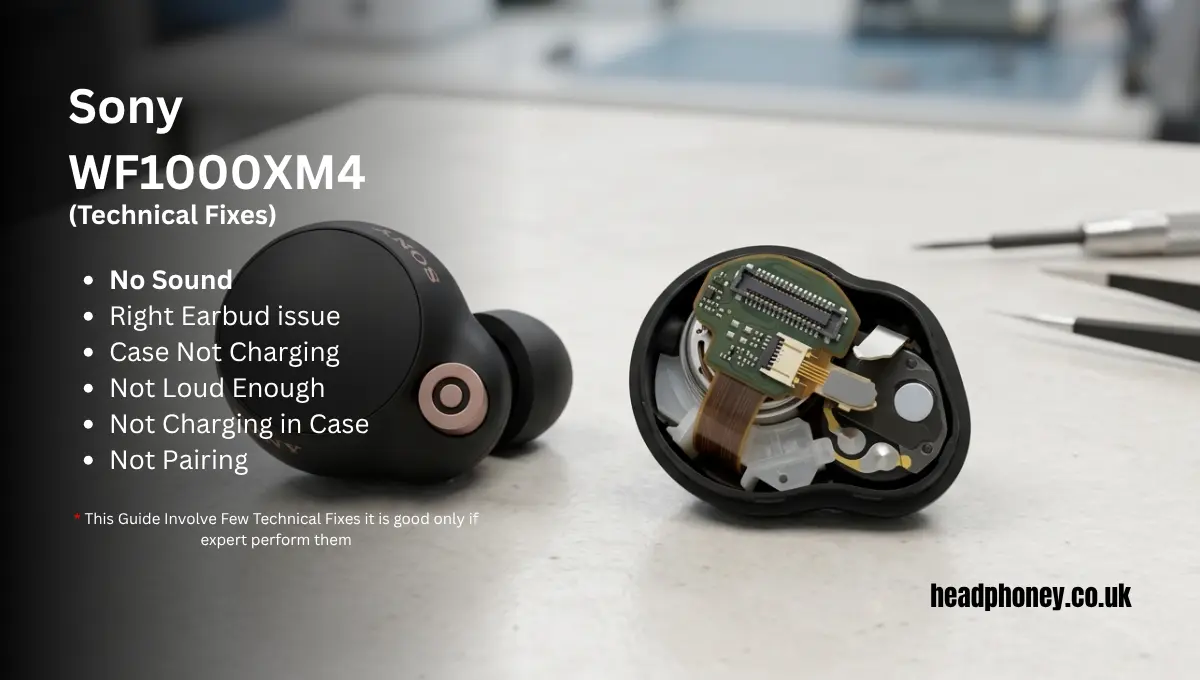
If these simple steps don’t work, more advanced troubleshooting may be needed. A technician would next check the earbuds’ internals. The WF-1000XM4 has tiny circuit boards and a small lithium battery in each bud. Faults can hide in the hardware: for example, if the internal battery (part LP702428) is dead, or a solder joint on the driver or chip has failed, neither bud will power on. In that case you’d carefully pry open each earbud, check the ribbon cable and ZIF connector inside, and confirm power on the board.
The 6 mm audio driver (with a neodymium magnet) is tiny, and any damage to its voice coil or amplifier could also kill the sound. Fixing these issues requires skill, one might remove the old battery or replace the driver. If you’re not a trained repairer, it’s safer to contact a professional.
Right Earbud Not Working:
If only the right earbud is silent (and the left works fine), start with non-technical checks. First, swap the earbuds between ears or devices: check if the same bud always fails. If it’s only the right side, do a quick reset. Place both buds in the case, close it for 5-10 seconds, then take them out and try again.
Also check any voice-assistant settings. The Sony Connect app lets you assign functions to each bud; if the Right bud was set for voice assistant and only the Left is set for playback, the Right may seem “off.” In the app’s Settings under Change tap operation function, ensure the Right bud is set to Playback control (and not locked to voice functions). This can restore sound to the right side.
Cleaning can help too: debris on the charging tip or speaker mesh can mute one ear. Gently remove the ear tip, clean around the metal contacts and mesh, and reseat the tip. Finally, make sure only one device is trying to stream to the earbuds, Bluetooth interference can drop one side if two sources are connected. In short, check the app, clean the buds, and fully re-pair them with your device. A normal factory reset/initialize of the earbuds (via the app or by holding sensors) often fixes one-sided audio errors.
When routine fixes fail, a tech-level repair may be needed. The WF-1000XM4’s right bud contains its own tiny battery and circuitry. If the right bud still won’t turn on, the internal 35mAh battery might have failed, or the PCB could be faulty. One would open the earbud by heating the plastic shell and prying it apart. Inside, there are two circuit boards connected by a board-to-board connector.
A technician would gently lift the ZIF connector flap and unplug the cable to access the battery or chip. They might replace the dead battery (parts suppliers list the exact replacement, e.g. FixShop in Europe sells the Sony LP702428 battery for under €10). Also, the audio chip or speaker wiring itself could be checked with a multimeter. This kind of fix is intricate, you need steady hands and specialized tools, so most people should opt for professional repair services.
Not Charging in Case (Case Won’t Charge Buds)
When your earbuds charge fine on USB but won’t charge when placed in the case, the issue is usually with the case or contacts. First, clean all contact points again: the metal pins in the case and the ones on the earbuds must make good contact. Wipe them with a soft cloth.
Ensure the earbuds are seated correctly, each bud only fits one side of the case. Also check the case’s internal battery: if the case has no power, obviously it can’t charge the buds. Open the case lid and see if the status LED lights when inserting the buds.
If it doesn’t light or is weak, the case isn’t delivering power. In routine practice, try charging the case itself for at least 30 minutes via USB-C, then put the earbuds back in. Sometimes a dead case battery needs a full charge before it can charge the buds.
If cleaning and charging the case don’t help, a deeper repair may be required. The charging case contains the circuitry for charging the earbuds. To fix it, a technician would open the case (similar to the guide above) and inspect inside. As shown in the teardown photo, the case has a glued-in battery and circuit board. First, they would fold back the plastic assemblies to expose the board and battery. The battery (the black block) can be carefully removed after unplugging it from the board.
Often, a failed case battery or a dry solder joint is the culprit. Replacing the case battery (or re-soldering connections) usually restores charging function.
Case Not Charging:
If your WF-1000XM4 buds won’t charge at all, start by isolating the problem. Try both charging methods: wireless pad and USB-C cable. If wireless, place the closed case properly on the pad (logo up) and ensure nothing like a case cover is blocking it. Try the supplied USB-C cable in a known-good port or wall adapter, since third-party cables sometimes fail. Next, clean the charging contacts.
Sony notes that dust on the case port or earbud pins can stop charging; clean the case’s USB port carefully with a dry brush, and wipe the earbuds’ metal contacts with a soft cloth. When you put the buds in the case now, watch the LED: a green light flashing briefly (about 3 seconds) means full charge, while orange means they are charging. If the light doesn’t come on at all, or stays red/orange too long, it suggests a charging issue. Also try charging at room temperature, Sony warns that too hot or cold can prevent charging. In many cases, cleaning contacts and trying a fresh cable restores normal charging behavior.
If standard steps don’t work, deeper repair may be needed. The charging case has a tiny circuit with its own battery and charging coil. A technician might open the case by unclipping its edges (there are four snap clips on the rim) to access the internal PCB. Inside, the largest component is the rechargeable case battery.
Carefully unscrew or release it and disconnect its cable from the board by heating the battery slightly to loosen glue, then lifting it out. If the case battery is faulty, replacing it (and reassembling) can restore case charging. For example, in one guide the battery was removed and a new one placed back in exactly the same spot. Similarly, the wireless charging coil under the board can be checked or replaced if needed.
These repairs require electronics skill. If you’re not confident, professional service is best mentioned below.
Not Loud Enough:
Many users find the WF-1000XM4’s volume surprisingly lower than competing earbuds. First, verify it’s not a settings issue. Make sure your phone’s volume is maxed and that Absolute Volume isn’t disabled on Android (sometimes toggling that helps). In the Sony Headphones Connect app, check Ambient Sound and Sound Mode, certain modes or noise-cancelling levels can make audio seem quieter, so experiment by turning off ANC or switching to Noise Cancel Off. Also look at the app’s equalizer settings: some users discovered that leaving the WF-1000XM4’s EQ enabled above 70% volume can actually cap loudness. A community tip was to disable Sony’s EQ and use a different sound app or preset instead
For instance, disabling the built-in EQ in the app and using a custom profile (like Wavelet’s EQ on Android) made a big difference. Additionally, try different ear-tip sizes or foam tips – a poor seal can dramatically lower perceived volume. Finally, clean the earbuds: earwax on the mesh will muffle the sound. In summary, before assuming hardware fault, rule out app settings, phone volume limits, and fit issues. In most cases these software or fit tweaks will restore full volume.
On the technical side, if the audio is still very soft, something may be wrong internally. Each WF-1000XM4 bud has a 6 mm driver (with a neodymium magnet) and a tiny amplifier chip. If the battery voltage is low or the amplifier isn’t reaching full output, the sound can be weak.
A trained technician might test the driver directly by applying a known signal and measuring its output. If the driver coil has degraded or there’s a partial short, it may need replacing. Similarly, a worn-out earbud battery won’t supply enough power; replacing the tiny Li-ion cell (Sony part LP702428) can sometimes restore proper output. This means carefully opening the earbud shell (as in the battery replacement guide), detaching the board, and swapping the battery or even driver if available.
Not Pairing (Bluetooth Connection Issues)
If the WF-1000XM4 won’t enter pairing mode or won’t connect to your device, start over with the simplest steps. First ensure the case is open and the buds are freshly charged. For initial pairing (first-ever connection), simply taking the buds out of a charged case should put them into pairing mode automatically.
You’ll hear the “Bluetooth ready to pair” voice prompt. For re-pairing (with a new device), place both earbuds in your ears and press and hold both touch sensors for about 5 seconds until the indicator blinks blue. Make sure your phone’s Bluetooth is on and within 1–2 meters. If the WF-1000XM4 used to work with this phone, “forget” or delete the WF-1000XM4 from your phone’s Bluetooth list, restart your phone, then try pairing again. Sometimes interference or saved data blocks a fresh connection, so a device reboot often helps.
If you still can’t pair, try a full headset reset or initialize. In the Headphones Connect app or via Sony’s procedure, perform a factory reset of the earbuds. This clears all pairing info and often clears pairing bugs. Then repeat the pairing steps. For advanced troubleshooting, a technician might open the case and check the Bluetooth antenna and contacts, but usually it’s simpler: check if another device can pair (to rule out phone issues).
Repair Service Providers:
If you are facing issue in your earbud and their is no warranty then consider these repair service providers.
| Service Provider | Location | Service Type |
|---|---|---|
| Sony Support UK | United Kingdom | Official manufacturer repair |
| iSmash | United Kingdom | Third-party repair |
| FixFirst | Europe (Netherlands) | Specialist earbud repair |
Conclusion:
Most WF-1000XM4 issues have clear first-aid fixes: reboot and re-pair, clean contacts, charge properly, and check app settings. If a problem persists, it often involves the tiny internal battery, contacts or circuitry, which usually means disassembly. That’s beyond most home fixes, so don’t hesitate to seek professional help. By following these steps, though, you can resolve nearly any WF-1000XM4 fault – and if you need it, trustworthy repair services are available to get your Sony earbuds working like new